Setup and onboarding
Set up METBooker without turning it into an IT project
METBooker is web-based software, so there is no server to buy, software to install or technical system for your business to build. Sign in through a browser, answer a few plain-English questions and the Setup Wizard creates the right checklist for the way your business works.
The opening questions take only a few minutes. For a straightforward business with its details ready, the core setup can be completed in minutes. If you want help, free training and remote setup assistance are included.
- Nothing technical to install
- Works through a modern web browser
- Free training and remote assistance included
You know the business. The wizard handles the order.
Setup is mostly a matter of telling METBooker what you already know: what you do, what it costs, when you work, who or what can be booked, how customers confirm, and how you want to be paid. You do not need to understand databases, hosting, webhooks or software deployment to make those decisions.
The wizard starts with the big operational choices, then turns your answers into a practical checklist. It does not send you hunting through a long Settings page or ask you to guess which field matters next.
METBooker provides
- the hosted SaaS platform
- the customer booking page and administration console
- the Setup Wizard and tailored checklist
- the guided fields, explanations and Help Guide
- free training and remote setup assistance
- a safe way to restore a recent configuration if a settings change needs to be undone
The business provides
- business name and contact information
- services, prices and typical durations
- opening hours, staff or bookable resources
- the payment provider it wants to use, if taking online payments
- its calendar or email choice, if connecting one
- invoicing and booking-policy choices
- logo and photographs where it wants branded content
Nothing technical to install, host or build. You provide the business decisions and information you already know. Payment passwords, API keys and provider authorisation remain under the business's control. Remote assistance should guide the connection rather than asking for secrets by ordinary email.
From a few answers to a live booking flow
The opening questions take only a few minutes. For a straightforward business with its services, prices and account details ready, the core setup can be completed in minutes. A larger service list, more staff or additional integrations will naturally take longer, but the wizard keeps the work in a clear order and saves progress as you go.
- 01Sign in
Open the admin console in a browser. There is no local installation.
- 02Describe how your business works
Answer up to seven short questions about bookings, payments, calendars, services and invoicing.
- 03Receive a tailored checklist
METBooker shows only the setup steps relevant to the choices you made and the capabilities enabled for the account.
- 04Go straight to each setting
Every step explains why it matters, what the choice changes and exactly what to enter, then links to the correct field.
- 05Run a safe test
Check the customer flow, email, calendar and payment behaviour before inviting real customers.
- 06Go live
Share the direct booking link, add it to profiles and messages, or embed it on the business website.
Your answers
- service type
- confirmation
- payments
- deposit or full payment
- calendar and email
- single or multi-service
- invoicing
Your exact setup route
- business details
- hours
- services
- staff and resources
- provider connections
- policies
- test
- share
Up to seven short choices shape the rest of setup
The wizard asks one question at a time and explains the effect of each answer. Some questions appear only when they apply, so a business that does not take online payment is not asked how it wants to split that payment.
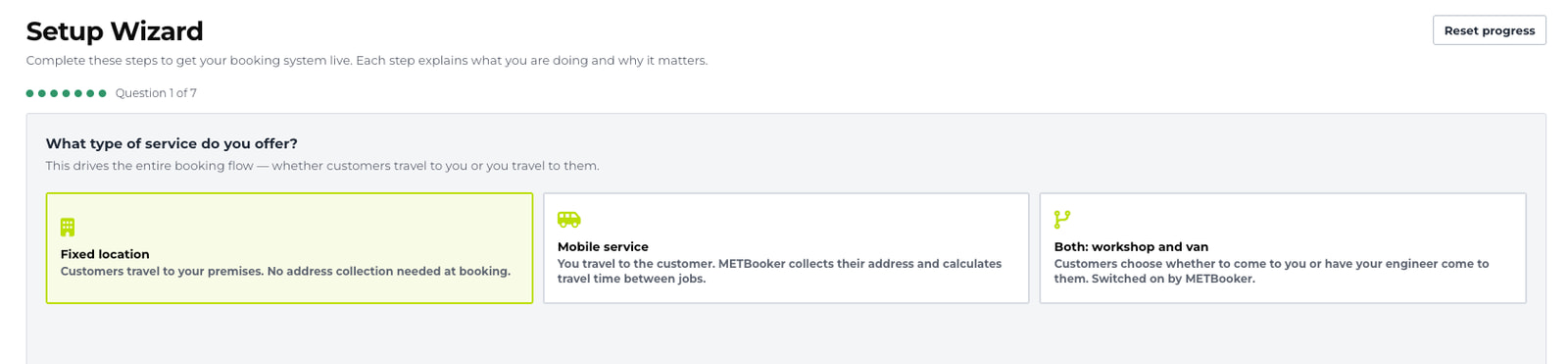
- 01
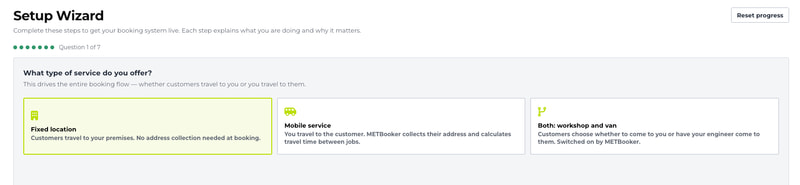
Where do you work?
- What it asks
- Choose a fixed location, a mobile service, or a business that handles both workshop and van work.
- Why it asks
- This changes whether customers provide an address and whether travel and coverage need to be considered.
Typical answers:
- Fixed location
- Mobile service
- Both: workshop and van
Shown in full above.
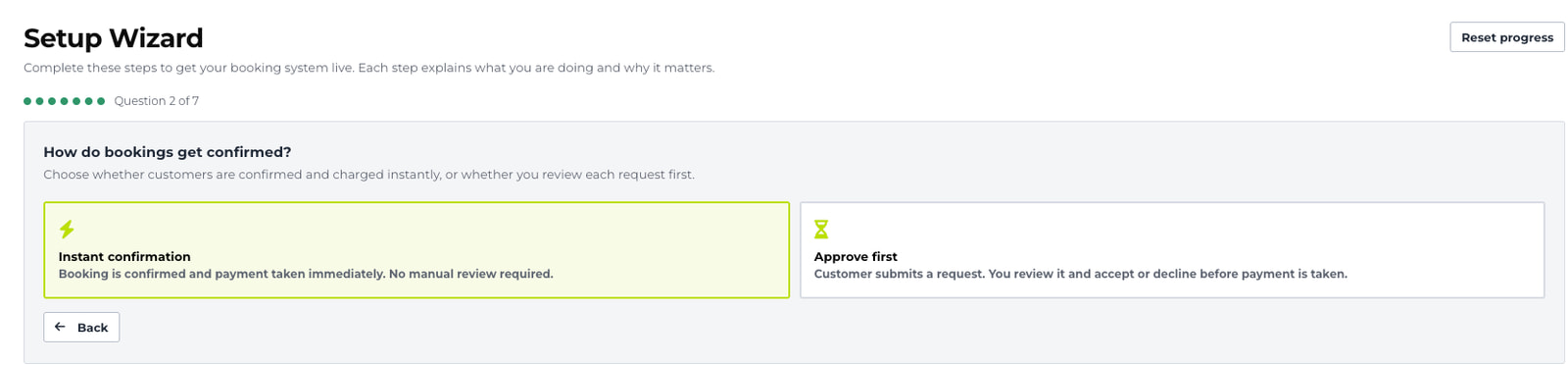
- 02
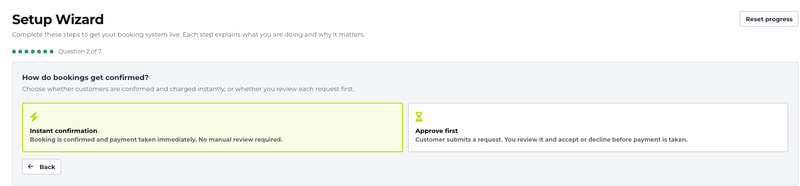
How should bookings be confirmed?
- What it asks
- Choose instant confirmation or ask to review a request first.
- Why it asks
- This controls whether a suitable slot is confirmed immediately or held for the business to accept or decline. Mixed workshop and van setups use their configured route and may not see this as a separate opening question.
Typical answers:
- Instant confirmation
- Approve first
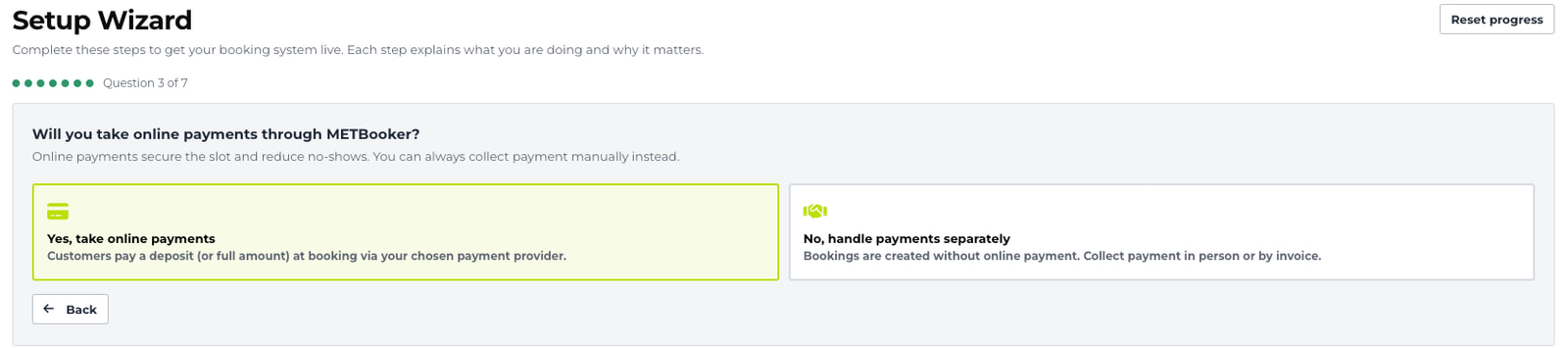
- 03
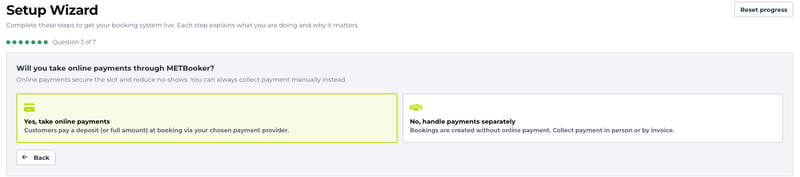
Will you take online payments?
- What it asks
- Choose whether customers pay through the selected provider or whether the business collects payment separately in person or by invoice.
- Why it asks
- Taking payment at booking secures the slot. Without it, bookings are created and payment is collected later.
Typical answers:
- Yes, take online payments
- No, handle payments separately
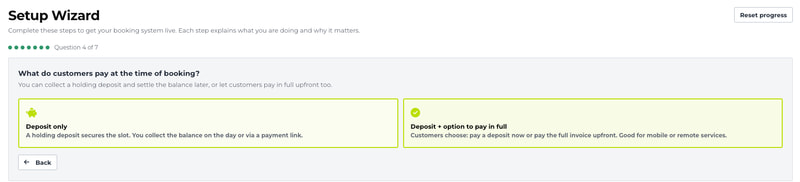
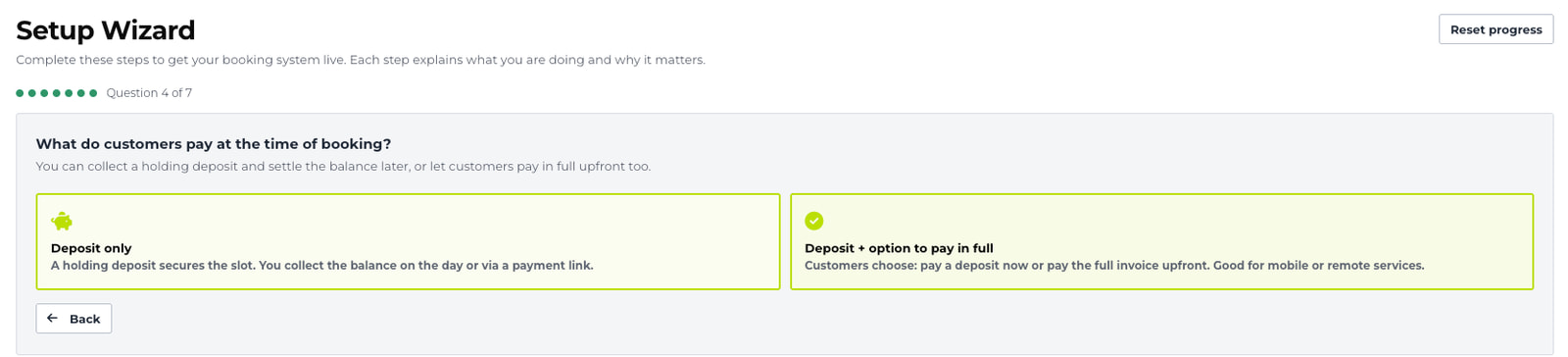
- 04
What should customers pay when they book?
- What it asks
- If online payment is enabled, choose a deposit-only route or let the customer choose between a deposit and full payment.
- Why it asks
- This sets what the customer pays at checkout and what is left to collect on the day or by payment link.
Typical answers:
- Deposit only
- Deposit, with the option to pay in full
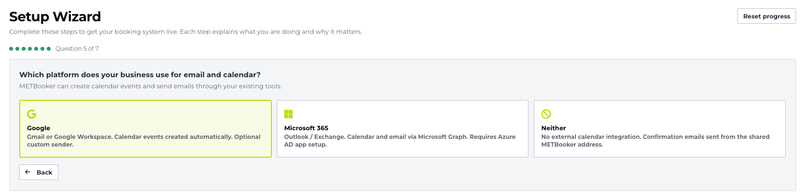
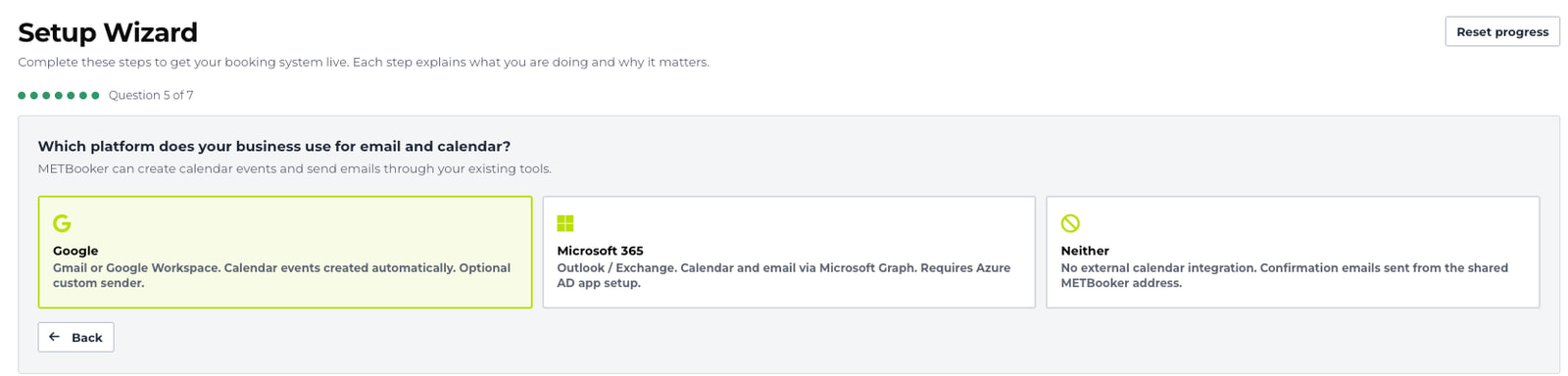
- 05
Which email and calendar platform do you use?
- What it asks
- Choose Google, Microsoft 365 or neither.
- Why it asks
- This tells the checklist which calendar and email steps are relevant and avoids showing unnecessary connection work.
Typical answers:
- Microsoft 365
- Neither
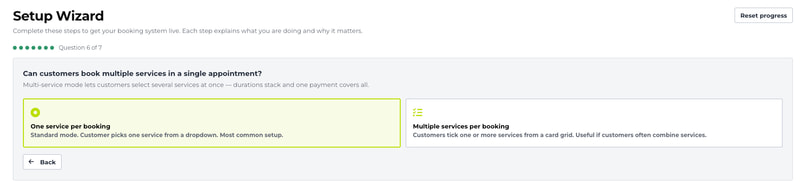
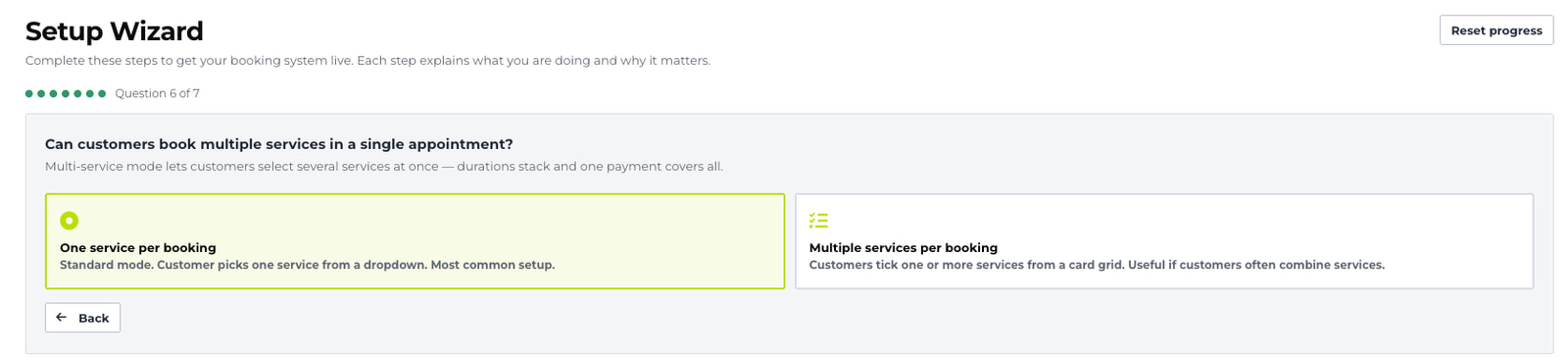
- 06
Can customers combine services?
- What it asks
- Choose one service per booking or multiple services in one appointment.
- Why it asks
- This changes how services are presented and how their durations and prices are combined.
Typical answers:
- One service per booking
- Multiple services per booking
- 07
How do you want to handle invoices?
- What it asks
- Choose built-in PDF invoices, where invoicing is enabled for the account, or no invoicing for now.
- Why it asks
- This decides whether invoice preferences are added to the checklist.
Typical answers:
- Built-in PDF invoices
- No invoicing needed
These answers create the starting setup route. They are not a permanent lock-in. An authorised user can update the relevant settings later as the business changes.
Then METBooker takes you to the exact settings
Completing the opening questions does not leave you in a generic settings screen. METBooker builds a checklist for the selected setup and guides you through it in the right order.
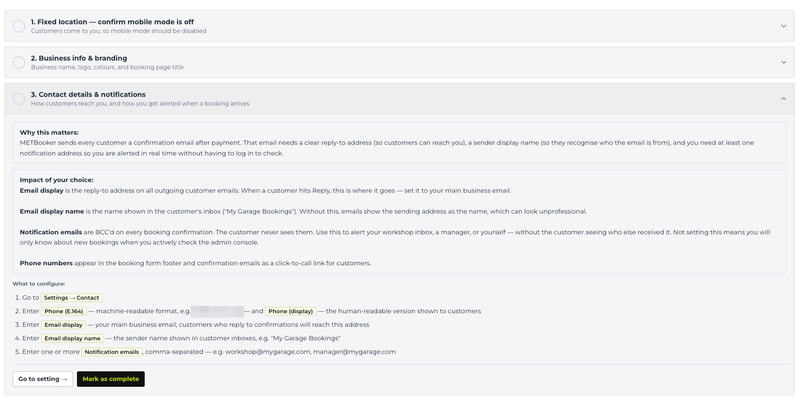
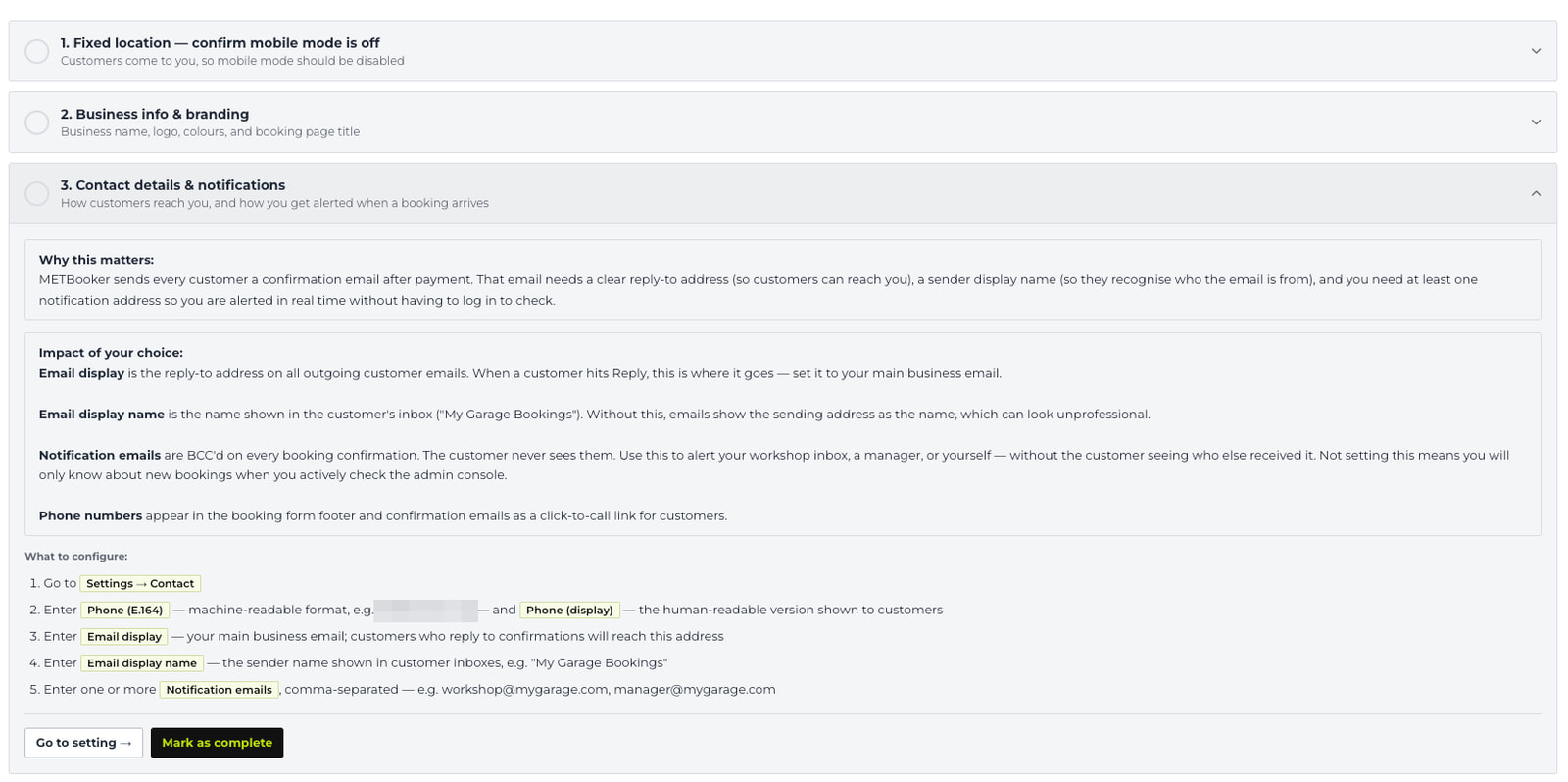
What each checklist item gives you
- 01A clear task title
For example, “Contact details & notifications” rather than an internal configuration name.
- 02Why this matters
A plain-English explanation of the customer or operational reason for the setting.
- 03Impact of your choice
What customers and staff will experience after the setting is saved.
- 04What to configure
A numbered list of the exact fields to complete, with examples where useful.
- 05Go to setting
A direct action that opens the relevant place in Settings.
- 06Mark as complete
Progress is recorded, so the business can leave and return without losing its place.
The checklist adapts to the business. A fixed-location garage is not shown mobile coverage work. A business that chooses no external calendar is not taken through Google or Microsoft connection steps. If reviewed bookings, full payment, invoicing or mixed workshop and van operation are selected, the relevant controls are added to the route.
Services and staff or resources are part of the same guided sequence. The wizard can recognise when those records already exist, so completed work does not need to be repeated.
Everything needed to move from an empty account to a tested booking
Business basics
Add the business name, contact details, customer-facing email identity, notification recipients, logo, colours and booking-page title. Confirm whether the work happens at a fixed site, at customer locations or across both.
Time, services and people
Set opening hours and slot intervals, add services with their prices and durations, and add the staff, bays, departments or vehicles that customers can book. Where mobile work is used, configure the relevant base, coverage and engineer information.
Payments and invoicing
Choose the payment route enabled for the account, enter or authorise the provider connection securely, set deposits and any full-payment option, and configure invoice preferences where used.
Email and calendar
Connect Google or Microsoft 365 where selected, or confirm the shared METBooker email route and no external calendar. The checklist shows only the route that applies.
Customer messages and policies
Add the practical information customers should receive before they arrive, including booking policy, arrival guidance and confirmation wording.
Test and share
Run an end-to-end test before taking real bookings. Check the customer confirmation, calendar event and payment route where used. Then share the booking URL or embed the booking form on the business website.
Do it yourself, do it with us, or hand us the awkward parts
Most of the setup is deliberately self-service, because a business owner should not need to raise a support ticket every time a price, photograph or opening hour changes. The wizard, field guidance and Help Guide are there to make the account understandable from the start.
Free training is included. If time is tight or a provider connection feels unfamiliar, remote setup assistance is also included. We can work through the checklist with you, help connect the selected services, run the test booking and get the account active with minimal interruption to the working day.
- Self-serve
Follow the wizard at your own pace. Progress is saved and every item links to the right field.
- Guided session
Share the business decisions with us and work through the checklist on a remote call while we explain each choice.
- Assisted setup
Provide the services, prices, hours, business information and selected providers. We help configure and test the account, while keeping passwords and provider authorisation under your control.
Assistance gets the account live. It does not make METBooker a permanently managed service. After launch, the business should have at least one authorised user who can sign in and manage its own configuration, services, prices, photographs, users and bookings.
The first setup is a starting point, not a lock-in
Businesses change. Prices move, opening hours change, staff join, new services are added and the way customers pay can evolve. Authorised users can return to the guided Settings areas, make a change and save it as the live configuration. They can then check the customer booking page and adjust again if needed.
METBooker also keeps recent settings versions. A Super Admin can review the configuration history and restore an earlier version if a settings change needs to be rolled back. The restore itself becomes part of the history, so the route back is controlled rather than hidden.
Restoring settings is not the same as reversing bookings, payments or invoices. It restores configuration. Sensitive provider credentials and business counters have additional safeguards in the product.
Manage it wherever the business needs it
METBooker runs through a modern web browser with an internet connection. An authorised user can sign in from the office computer, a workshop tablet or a phone while away from the premises. There is no separate local database to maintain and no on-site server for the business to look after.
Access remains controlled by user account and role. Global browser access does not mean public access to the administration console.
Common questions
Anything else, email admin@metbooker.com.
Do I need to install anything?
No. METBooker is web-based software. You use the booking and administration areas through a modern web browser with an internet connection. Your business does not need to host a server or install a local database.
Do I need technical knowledge?
No specialist technical knowledge is required for normal setup. The opening questions use business language, and the resulting checklist explains why each setting matters, what it changes and exactly where to enter it. Remote assistance is available for provider connections or anything unfamiliar.
How long does setup take?
The opening questions take only a few minutes. A straightforward business with its services, prices and account details ready can complete the core setup in minutes. More services, staff or integrations add time, but progress is saved and the checklist keeps the work in order.
What information do I need to provide?
Have your business details, opening hours, services, prices, typical durations, staff or resources and preferred payment and calendar providers ready. A logo and suitable business photographs are helpful where you want branded customer pages.
Is training included?
Yes. Free training and remote setup assistance are included. You can use the wizard yourself, work through it with us, or ask us to help configure and test the account using the business information you provide.
Can we change the setup later?
Yes. Authorised users can update settings, services, prices, photographs, users and other configuration as the business changes. Saved settings become the live configuration used by the booking flow.
Can a settings change be undone?
METBooker keeps recent configuration versions. A Super Admin can review the version history and restore an earlier settings version. This restores configuration; it does not reverse bookings, payments or invoices.
Can different people manage the account?
Yes. Access is controlled by authorised user accounts and roles. The business should keep at least one trained Super Admin who can manage its configuration and users.
Can you import our existing bookings and customer records?
No. Existing bookings and customer records are not currently imported. Start the new METBooker diary from the agreed live date and make sure phone, walk-in and online work is entered there from that point.
04 Get started today
Free trial · No card required
Bring the business details. We will help with the rest.
Start with the Setup Wizard, or ask us to work through it with you. Either way, the aim is the same: a tested booking flow that your team understands and can manage after it goes live.