
Booking and diary
Every booking in one diary
METBooker puts online, phone, counter, drop-off and requested work into one diary under the same rules, and checks the service, the eligible staff, capacity and travel before a time is offered.
One diary, not three
Many garages run a phone diary, a calendar and whatever an online form sends them. Things fall between them.
METBooker keeps them in one diary. Online customers see only times that are genuinely free because the diary already holds your phone and counter bookings, your staff's calendars and the travel time between mobile jobs.
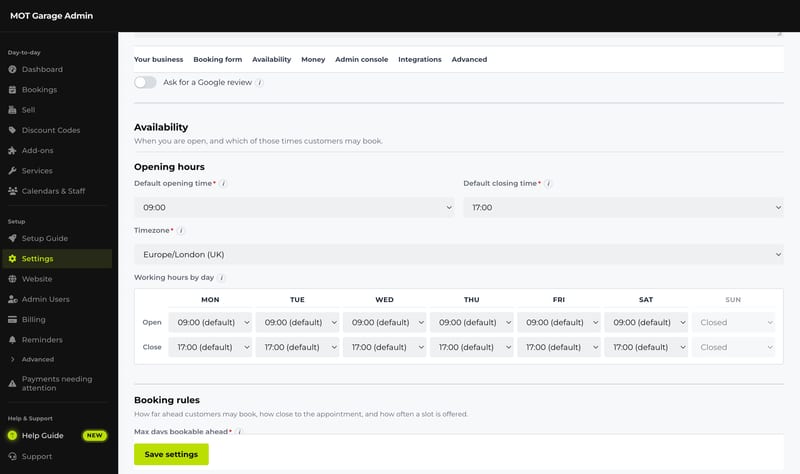
You set the rules once in the admin console: services and what they cost, how long each takes, add-ons and their extra time, buffer time after a job, opening hours, how much notice you need and how far ahead people can book.
Staff bookings, add-ons, requested bookings, booking several services at once and mobile or mixed operation are configured during onboarding.
- Slot held while paying
- 20 minutes
- Slot intervals
- Every 30 or 60 minutes
- Working modes
- Workshop, mobile or both; drop-off services with a daily limit
- Staff allocation
- Round robin, least busy, priority order or chosen deliberately
Four ways in
Each route lands in the same diary, with the same customer details, vehicle lookup and payment record.
- Online
From your booking page, a link in a message or post, or the booking form embedded in your website. The customer sees only times that fit your rules.
- Phone and counter
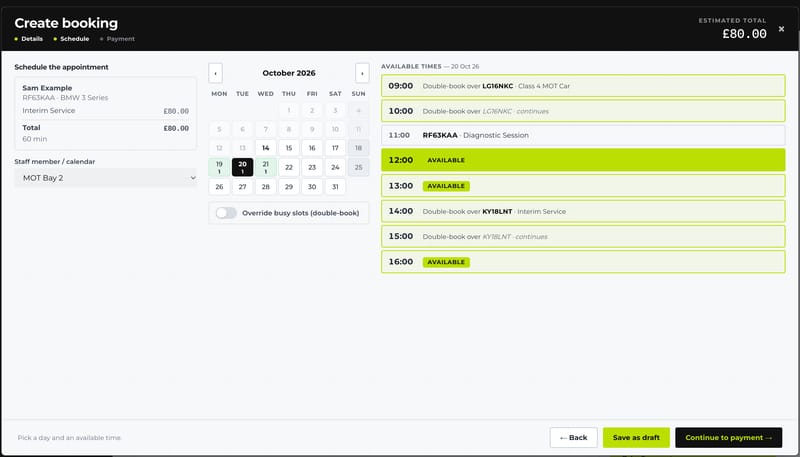
Staff create the booking in the admin console with the same services and rules, once staff booking is configured. A deliberate double-booking is allowed for staff and recorded.
- Walk-in and drop-off
A service can be staff-only, so it appears at the counter but not on your booking page, or a drop-off counted against a daily limit.
- Request
Work you want to vet first arrives as a request. You accept or decline it, choosing a deposit, full payment or no payment up front.
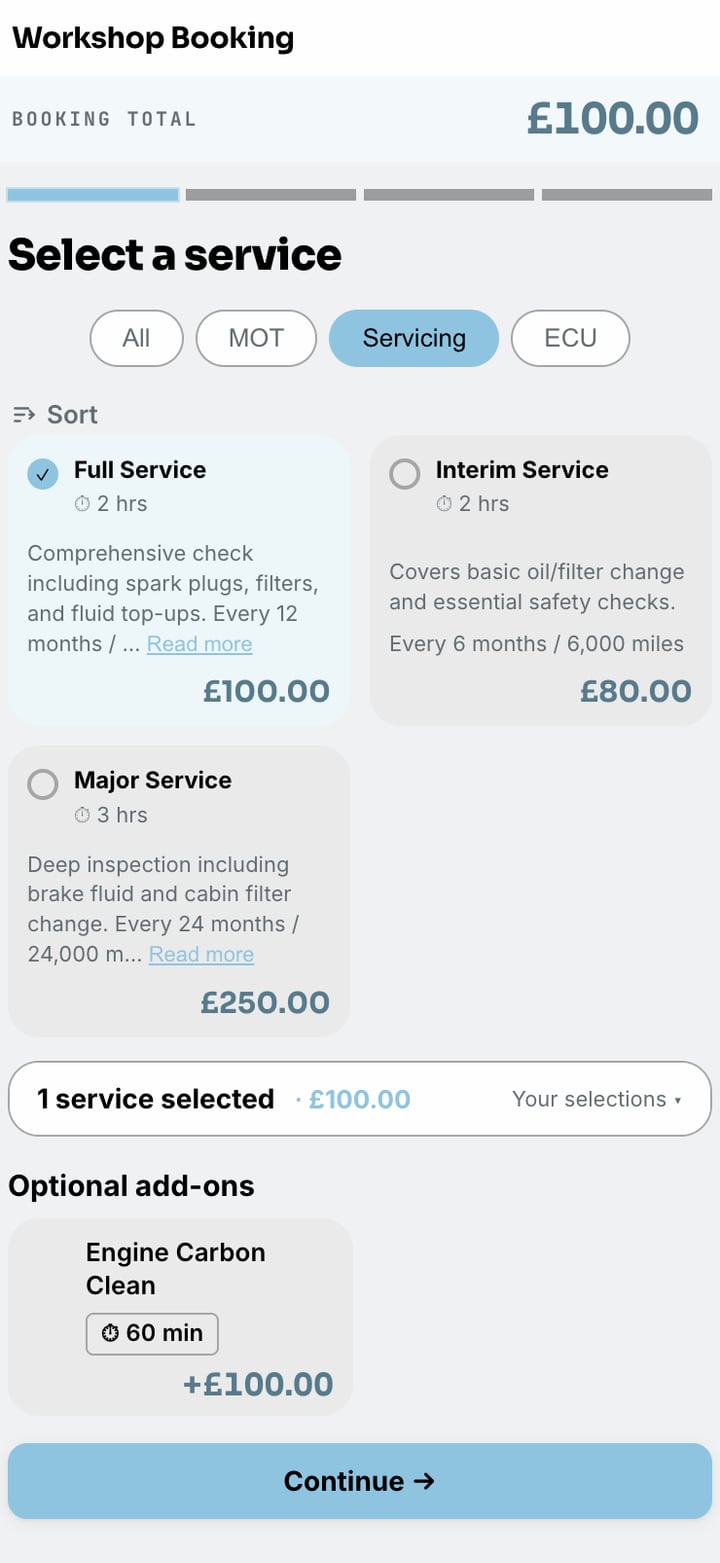
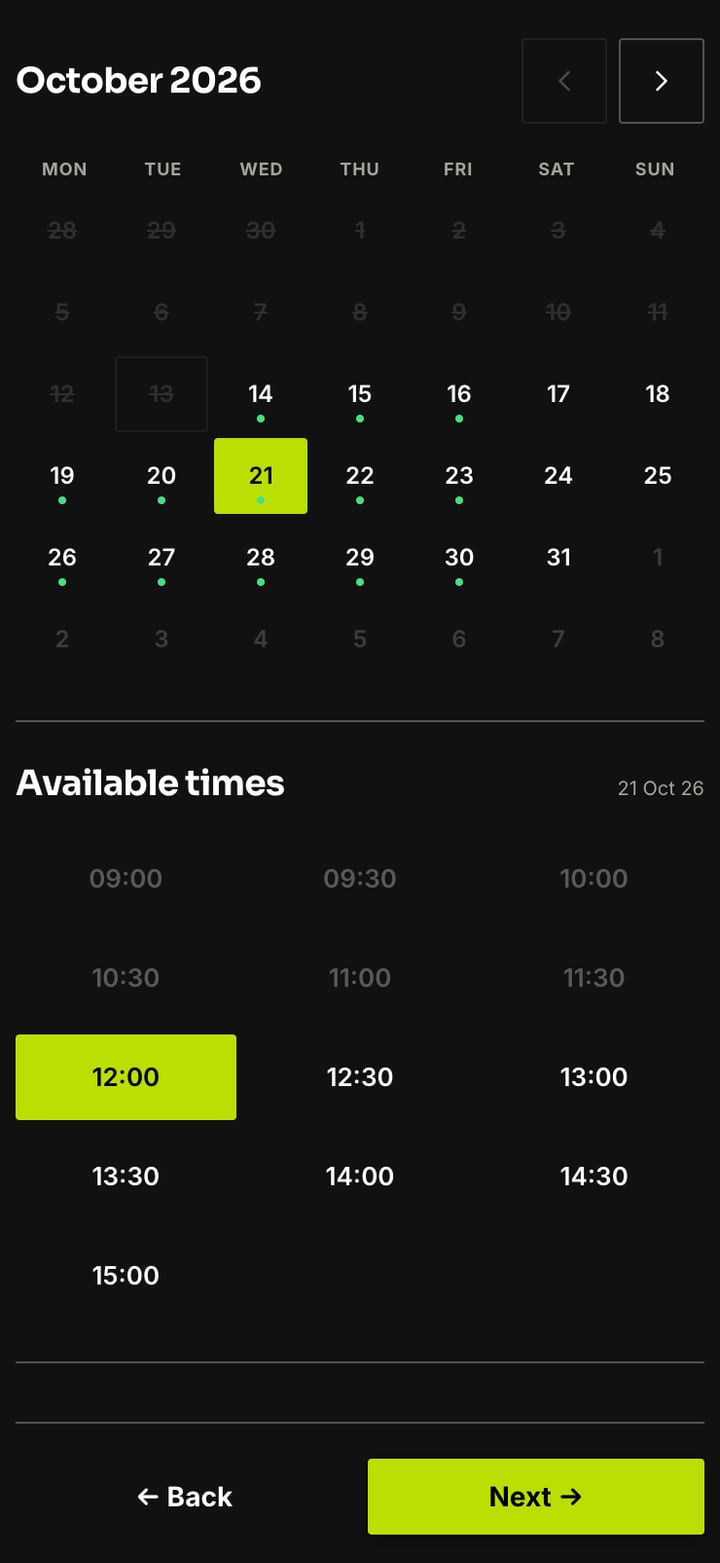
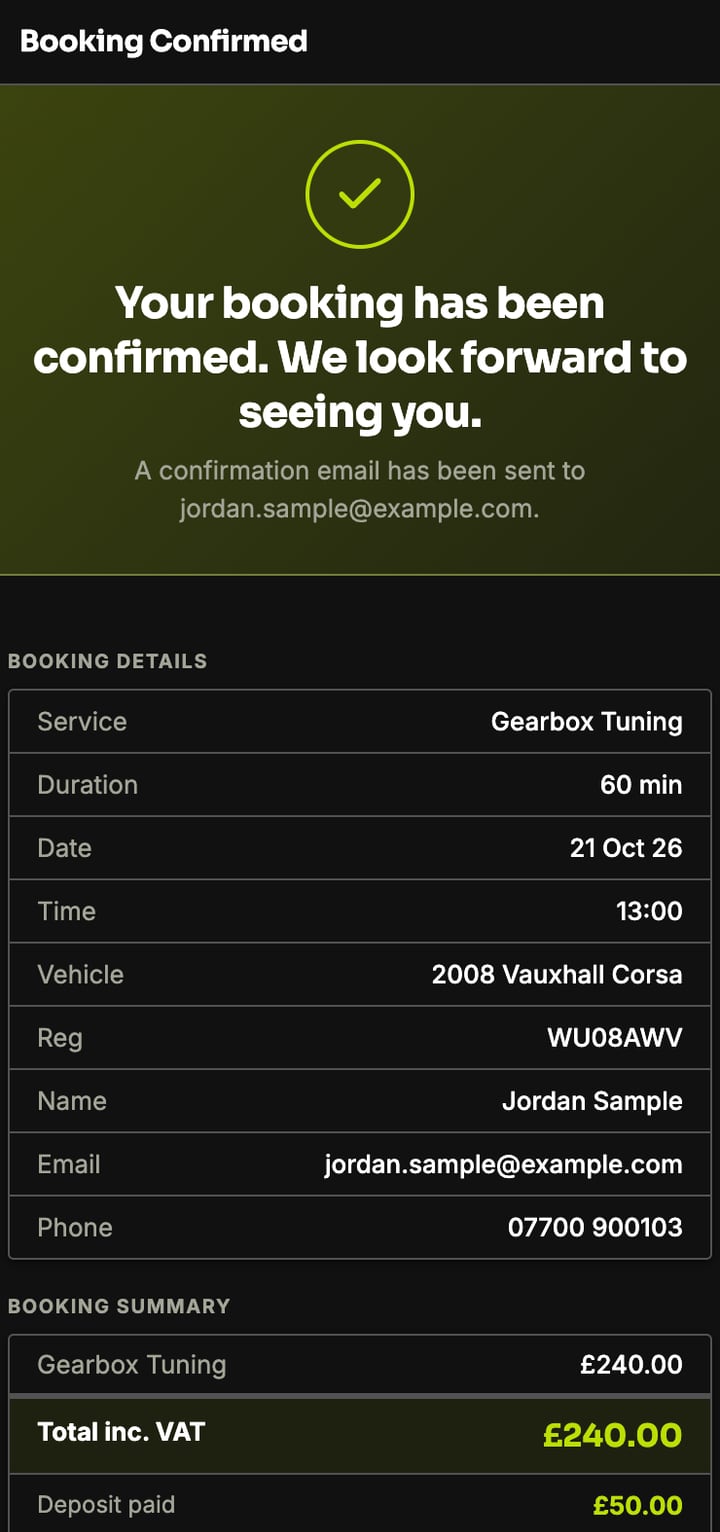
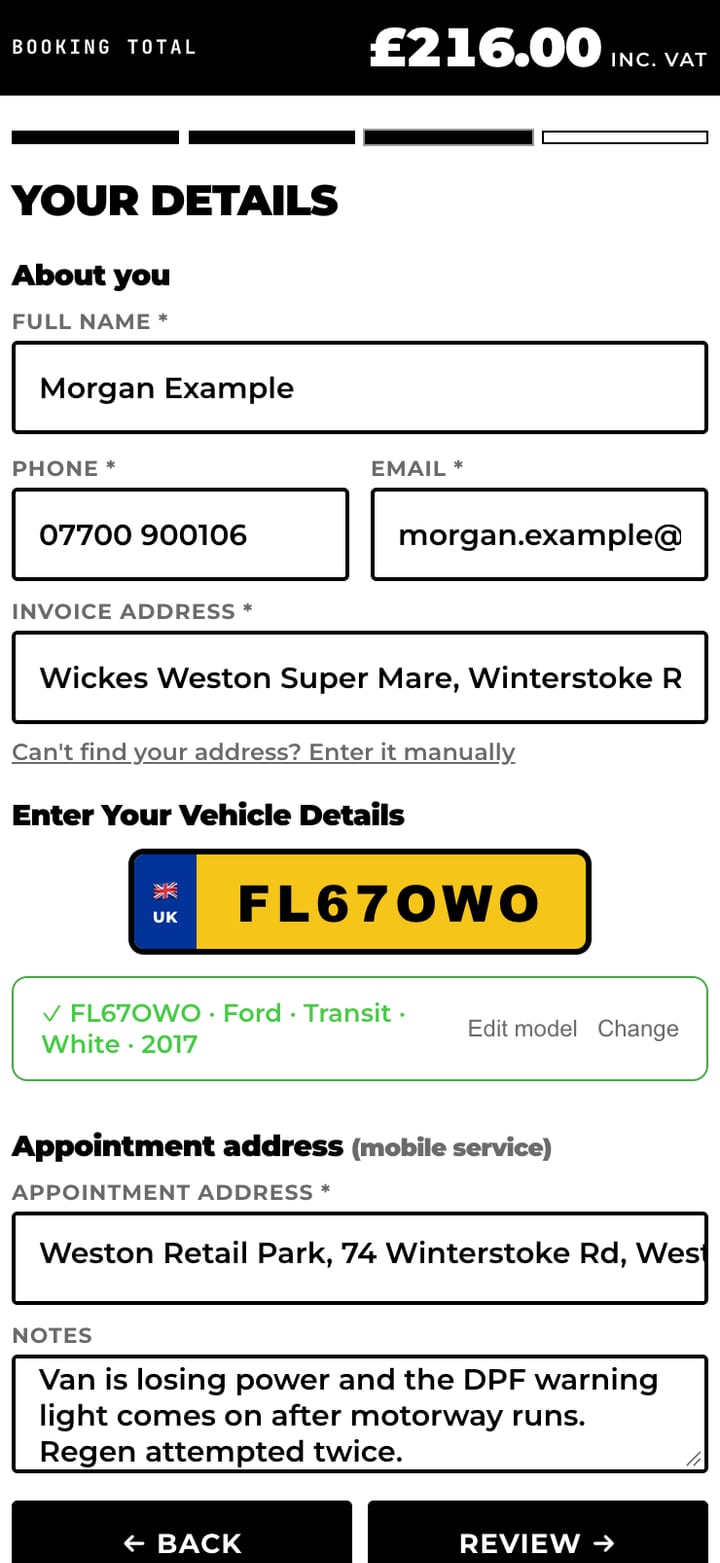
Decided before a time is offered
A time only appears to a customer once each of these checks passes. That is why the diary does not fill with jobs nobody can do.
- Service and duration
The service’s duration, any add-on time and the buffer after the job set how long the slot must be.
- Who can do it
Only staff assigned to the service are eligible, and their calendars must be free.
- Notice and range
Your minimum notice, same-day rule and how far ahead people can book.
- Drop-off capacity
For a drop-off service, whether the day’s limit has been reached.
- The journey
For mobile work, whether the address is inside coverage and the travel fits around the jobs either side.
- Hold while paying
Once chosen, the slot is held for the customer while they pay, so nobody else can take it.
The right person, by rule
Each service lists the staff who can perform it. Among those eligible staff, METBooker can allocate by round robin, by whoever is least busy, or by a priority order you set, and staff can still make a deliberate assignment when the job requires it.
A bay, a rolling road or a machine can be set up as its own calendar so it cannot be double-booked.
How a garage uses allocation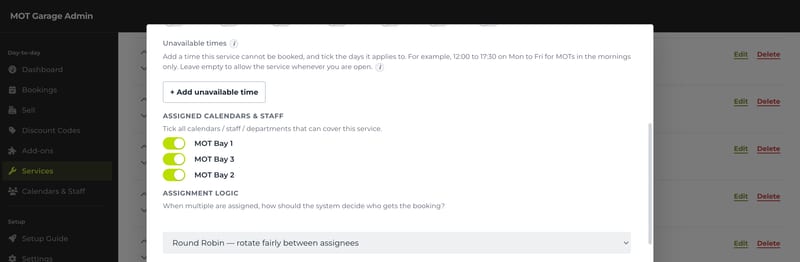
Mobile work that fits
For mobile work, METBooker checks the journey before it offers a slot.
You set your base and how far you travel. When a customer enters their address, METBooker estimates the journey from the job before and to the job after, using traffic for that time of day, and only offers the slot if it fits. The travel time is written into the diary too.
This is booking feasibility, not whole-route optimisation: METBooker does not reorder the engineer’s day.
For mobile mechanicsServices and add-ons
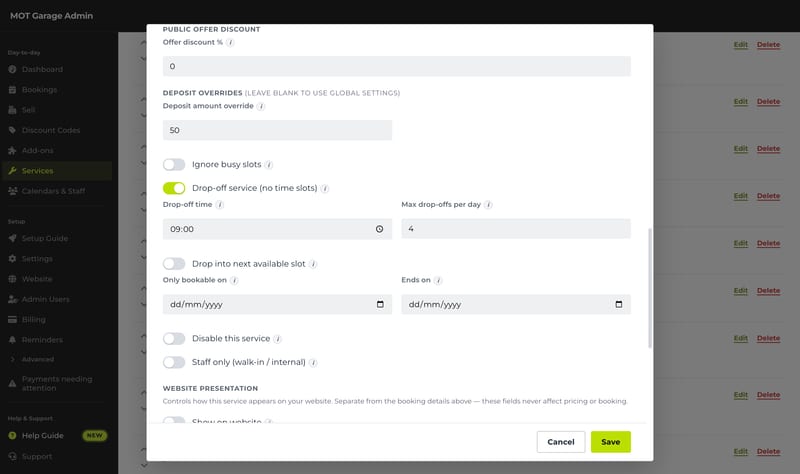
Durations, prices, buffers, eligible staff and deposits can differ by service, and relevant add-ons extend a booking without creating unrelated appointments. Drop-off services carry a daily limit so a machine or workshop is not over-promised.
Services and add-ons for tuning work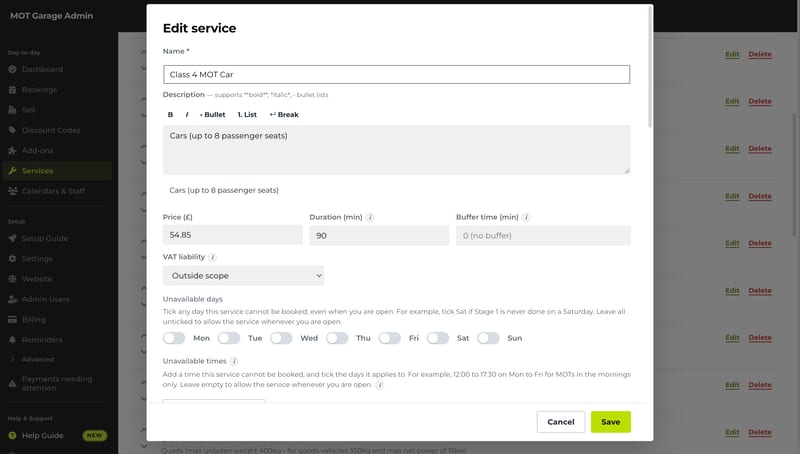
Changes, handled
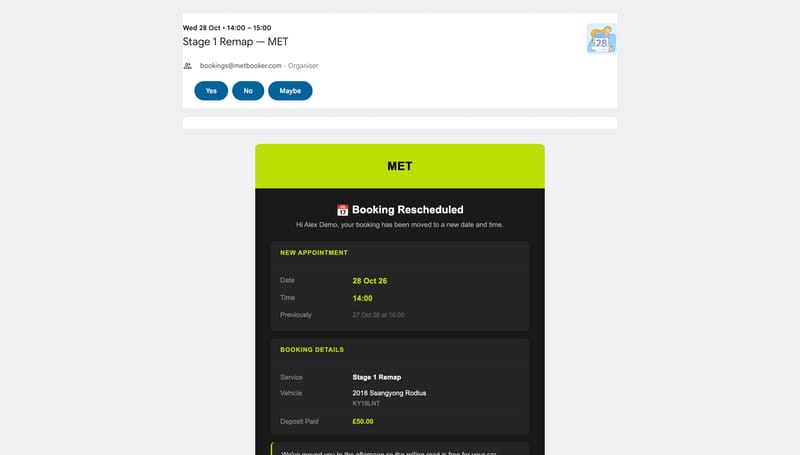
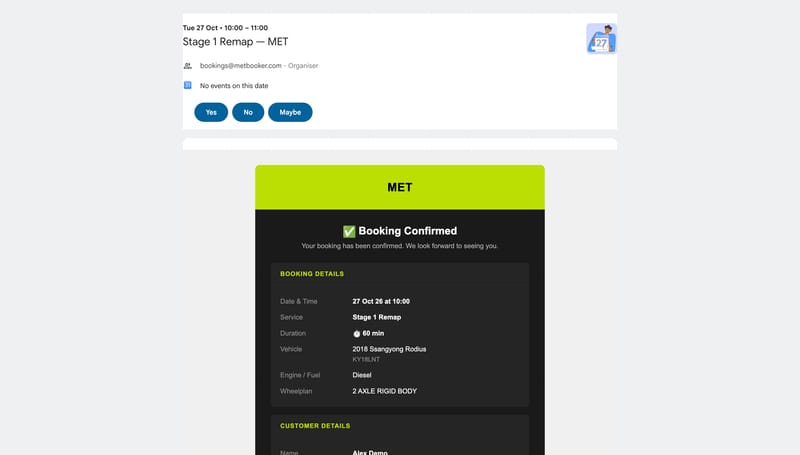
When plans change, staff move or cancel the booking in the console. The customer gets an email with the change and an updated calendar entry, the calendar event moves with it, and any deposit is dealt with under your cancellation policy.
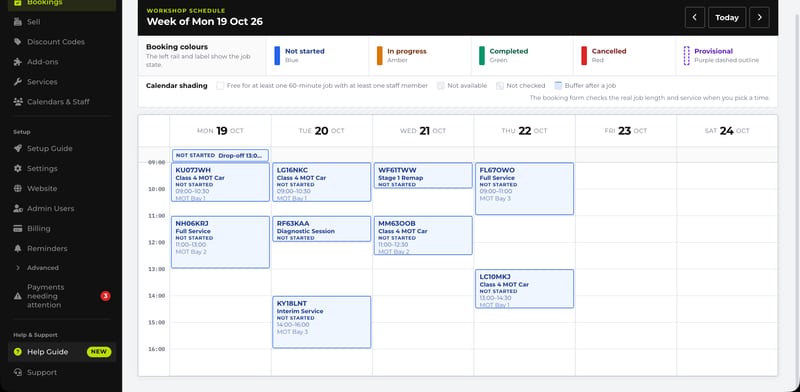
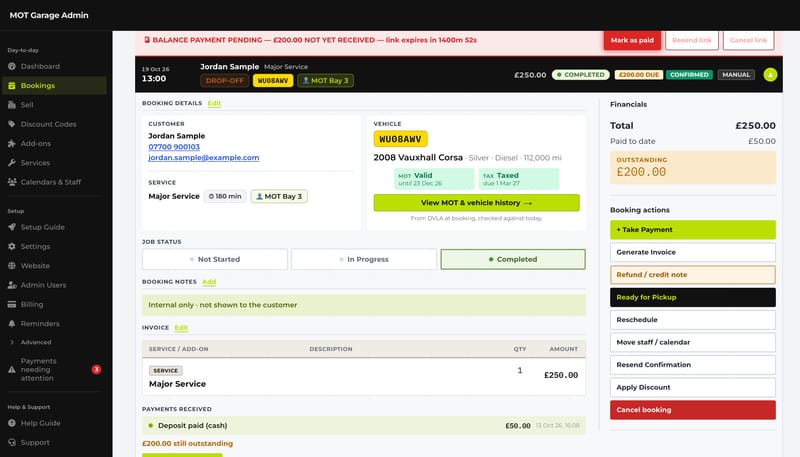
Each booking has a work status: not started, in progress or completed. Marking a job complete can send the customer an optional ready-for-collection email.
Common questions
Can customers book work that needs a price agreed first?
For work priced after inspection, set the service to hide its price, or take it as a request you accept once you have agreed the price with the customer. METBooker does not produce estimates.
Can I stop people booking too far ahead or at short notice?
Yes. You set a minimum notice period, whether same-day bookings are allowed, how far ahead people can book, and whether slots start every 30 or 60 minutes.
How is a job given to a member of staff?
Each service lists the staff who can perform it. Among those, METBooker allocates by round robin, least busy or priority order, set per service, and staff can still assign a job deliberately.
Can a customer move or cancel their own booking online?
Not at present. Customers contact you and your staff move or cancel it in the console; METBooker then emails the customer the change with an updated calendar entry.
Do customers get a reminder before the appointment?
The confirmation email includes a calendar entry with its own alert. METBooker does not currently send a separate reminder email or text before the appointment.
Where next
See booking set up for a particular kind of business, or carry on to how payment is taken against each booking.