
Team and operations
The right person, the owner's view
METBooker gives each person a calendar and the services they can perform, allocates eligible work by rule, and shows the owner what is booked, what is owed and what needs attention, with roles and configuration history controlling who can change what.
Work goes to who can
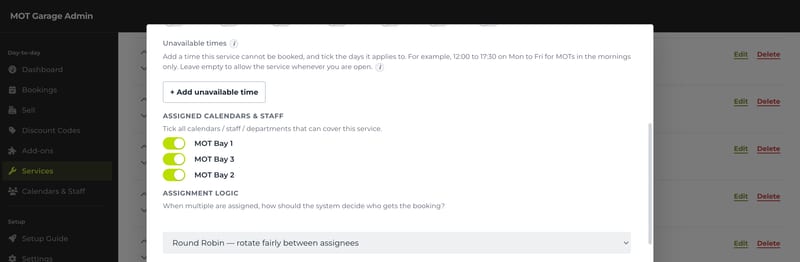
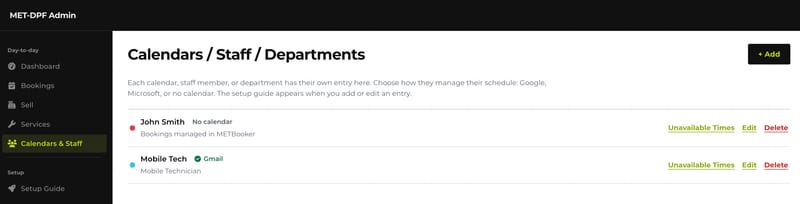
Each member of staff has a calendar, which can be METBooker's own or their Google or Microsoft 365 calendar. Each service lists the people who can perform it. When work is booked, only those eligible people are considered, and METBooker allocates by round robin, by whoever is least busy, or by a priority order you set. Staff can still make a deliberate assignment.
Example. Three technicians, two of whom do brake work. A brake service booked online goes to whichever of the two has the lighter day; an MOT goes only to the tester.
The day at a glance
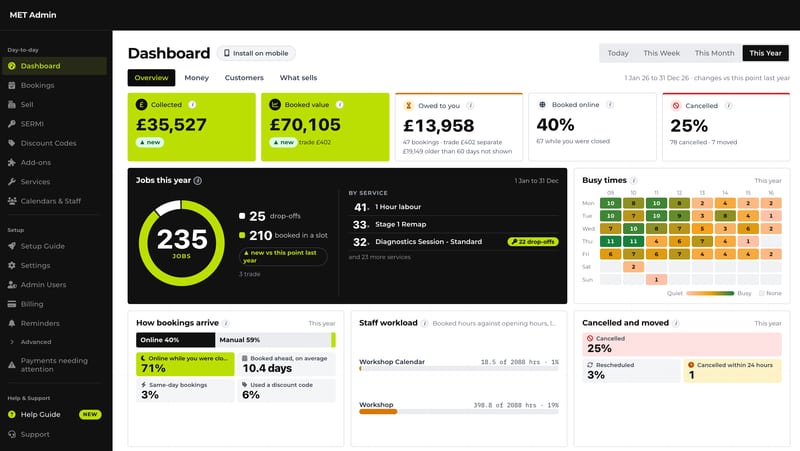
Switch between today, this week, this month and this year.
The dashboard sets out money taken and money owed, with how long it has been owed; when the business is busiest; how bookings arrive (online, by staff, out of hours) and how far ahead; cancellations and moves; the most-booked services and add-ons; and the workload of each member of staff. For van work it adds the day's rounds and time on the road.
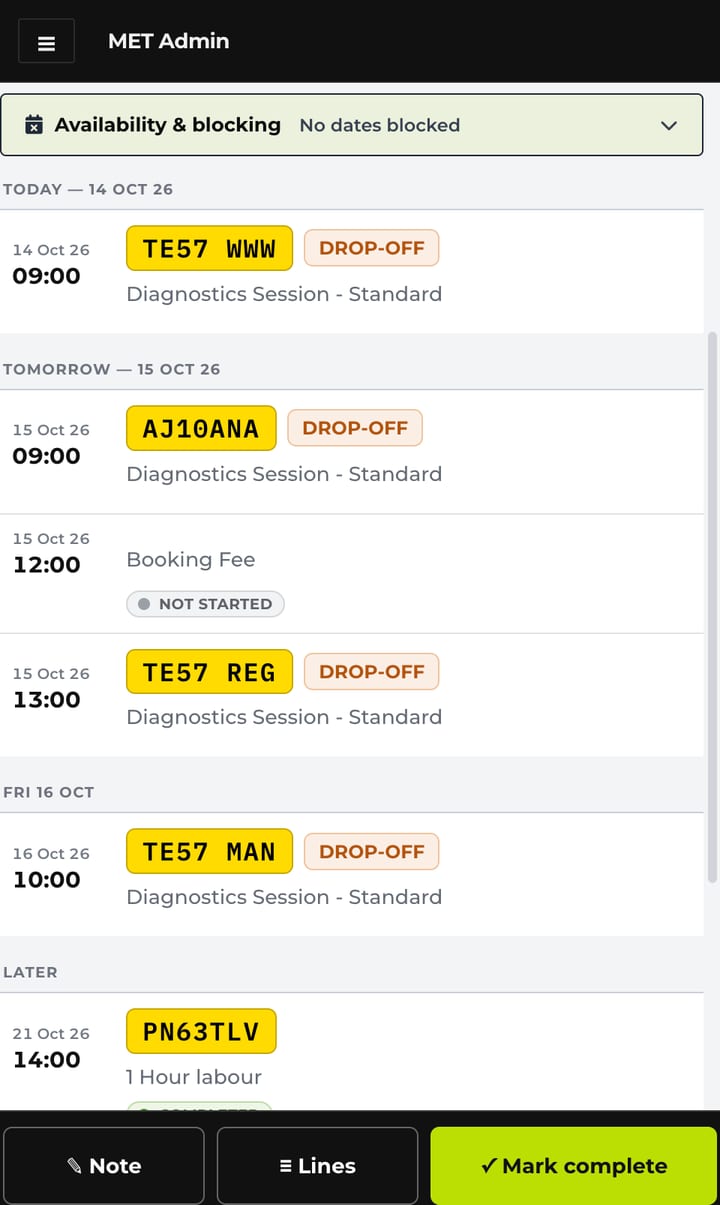
The bookings list filters by today, tomorrow, the week ahead and longer, and a week view shows the free time between jobs.
What needs you
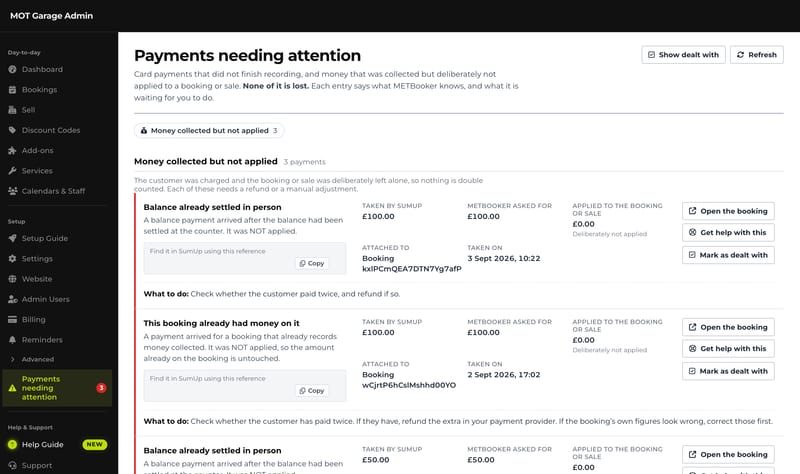
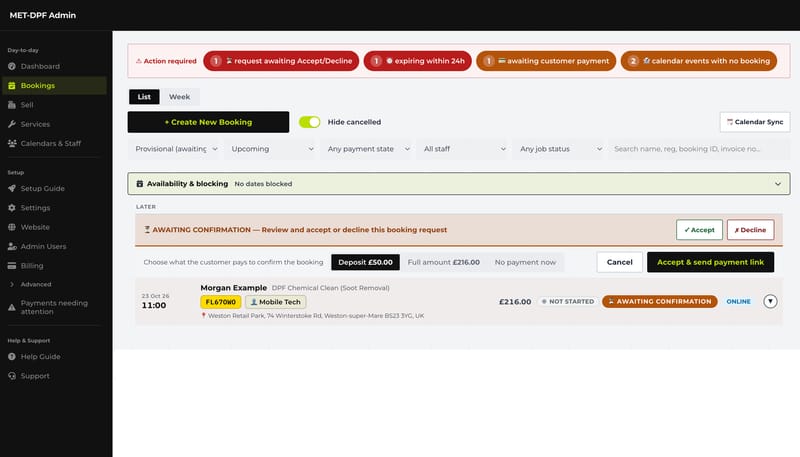
Requests waiting for an answer, balances unpaid, payments that failed or stalled, refunds made outside METBooker and credit notes still owed: these are brought to the front rather than left for someone to notice. Each item says why it is there, and once dealt with it stays dealt with unless the payment changes again.
Control over changes
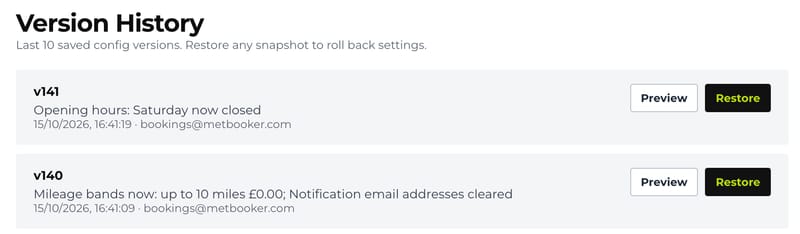
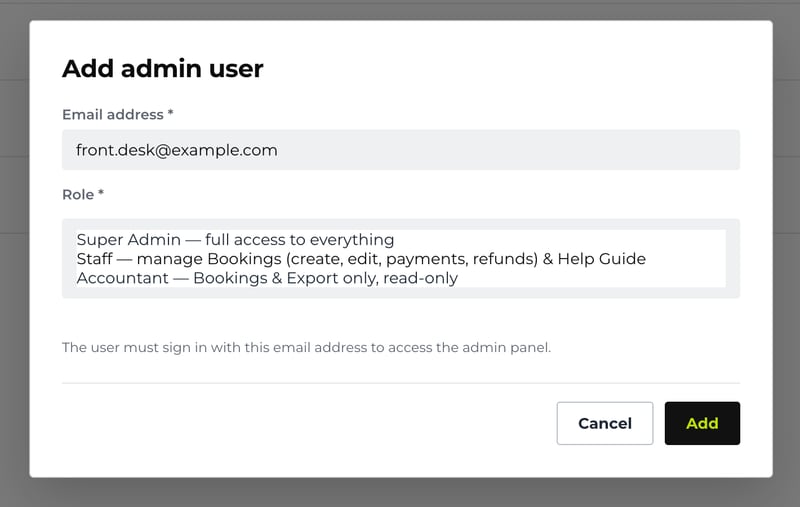
Three roles decide who can do what, enforced on the server. Every change to your settings is saved as a version with who made it and when, so a mistake with prices or opening hours can be restored without re-entering anything. Selected booking, payment and refund actions are recorded in an audit log; not every read, click or change is audited. A system status page shows whether METBooker's services are running.
Security and resilience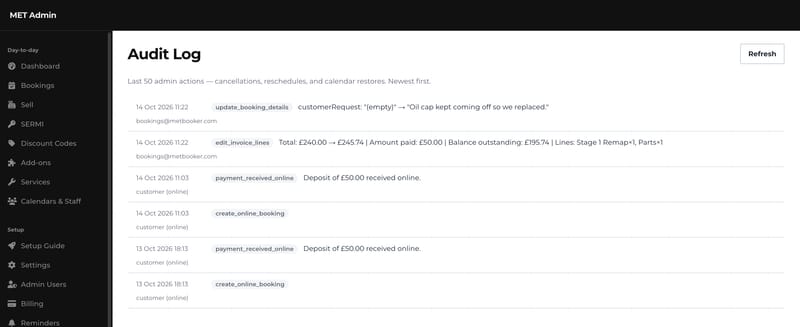
- Super Admin
- Everything, including settings, staff, billing and access
- Staff
- Bookings, payments, refunds and credit notes
- Accountant
- Read and export only
- Settings versions kept
- recent versions, each one restorable
- Sign-in
- Authenticator code for password sign-ins
Common questions
Can I give the receptionist access without letting them change prices?
Yes. The Staff role can create, move and cancel bookings and take payments and refunds, but cannot change settings, services, discounts, staff, the website or billing.
Can my accountant log in?
Yes, with the Accountant role, which can see bookings, payments and invoices and export them, but cannot change anything.
Does METBooker handle more than one site?
Each account is one business location. A business with two sites would run two accounts; there is no multi-location management.
How does METBooker know who can do a job?
Through service eligibility: each service lists the people who can perform it. Among those, METBooker uses round robin, least busy or priority order. There is no separate model of each person’s abilities.
Can I install the admin console on my phone?
Yes. It can be added to a phone or tablet home screen and opens like an app.
Where next
See how the same platform is set up for different kinds of motor-trade business.